Note
Go to the end to download the full example code.
Text alignment
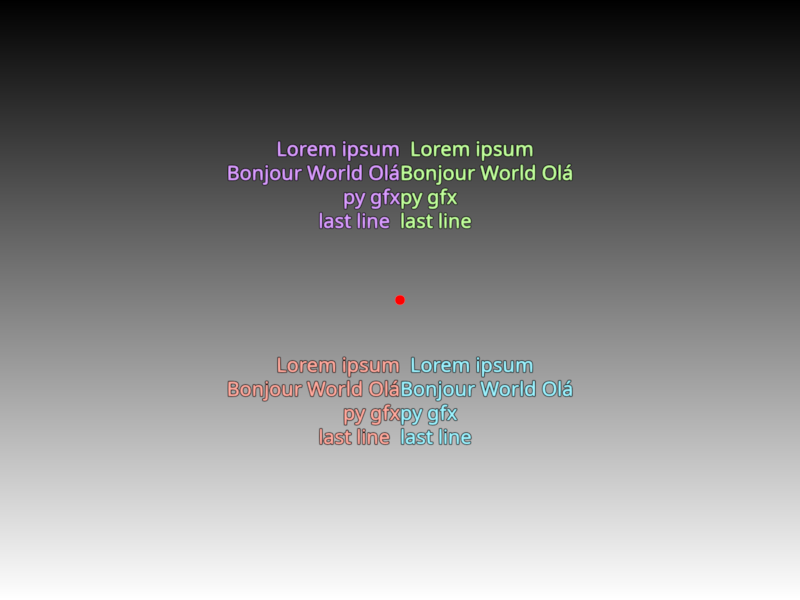
Example demonstrating the capabilities of text to be aligned and justified according to the user’s decision.
This demo enables one to interactively control the alignment and the justification of text anchored to the center of the screen.
from rendercanvas.auto import RenderCanvas, loop
import pygfx as gfx

scene = gfx.Scene()


scene.add(gfx.Background.from_color("#fff", "#000"))
text = (
    " \n  \n\n"  # Some newlines and spaces before the text starts.
    "  Lorem ipsum\n"  # Some space at the very beginning of the line
    "Bonjour World Olá\n"  # some text that isn't equal in line
    "py gfx\n"  # a line with exactly 1 word (with a non breaking space inside)
    "last line  \n"  # a line with some space at the end
    "\n  \n\n"  # Some newlines and space at the end
)

font_size = 20

text_bottom_right = gfx.Text(
    text=text,
    font_size=font_size,
    screen_space=True,
    text_align="right",
    anchor="bottom-right",
    material=gfx.TextMaterial(
        color="#DA9DFF", outline_color="#000", outline_thickness=0.15, aa=True
    ),
)

text_top_right = gfx.Text(
    text=text,
    font_size=font_size,
    screen_space=True,
    text_align="end",
    anchor="top-right",
    material=gfx.TextMaterial(
        color="#FFA99D", outline_color="#000", outline_thickness=0.15, aa=True
    ),
)

text_bottom_left = gfx.Text(
    text=text,
    font_size=font_size,
    screen_space=True,
    text_align="start",
    anchor="bottom-left",
    material=gfx.TextMaterial(
        color="#C2FF9D", outline_color="#000", outline_thickness=0.15, aa=True
    ),
)

text_top_left = gfx.Text(
    text=text,
    font_size=font_size,
    screen_space=True,
    text_align="left",
    anchor="top-left",
    material=gfx.TextMaterial(
        color="#9DF3FF", outline_color="#000", outline_thickness=0.15, aa=True
    ),
)

points = gfx.Points(
    gfx.Geometry(positions=[(0, 0, 0)]),
    gfx.PointsMaterial(color="#f00", size=10, aa=True),
)
scene.add(
    text_bottom_right,
    text_top_right,
    text_bottom_left,
    text_top_left,
    points,
)

camera = gfx.OrthographicCamera(4, 3)

renderer = gfx.renderers.WgpuRenderer(RenderCanvas(size=(800, 600)))

renderer.request_draw(lambda: renderer.render(scene, camera))

if __name__ == "__main__":
    loop.run()
Total running time of the script: (0 minutes 0.362 seconds)
Gallery generated by Sphinx-Gallery
Interactive example
Try this example in your browser using Pyodide. Might not work with all examples and all devices. Check the output and your browser’s console for details.