Note
Go to the end to download the full example code.
Validate transparency with and without bg
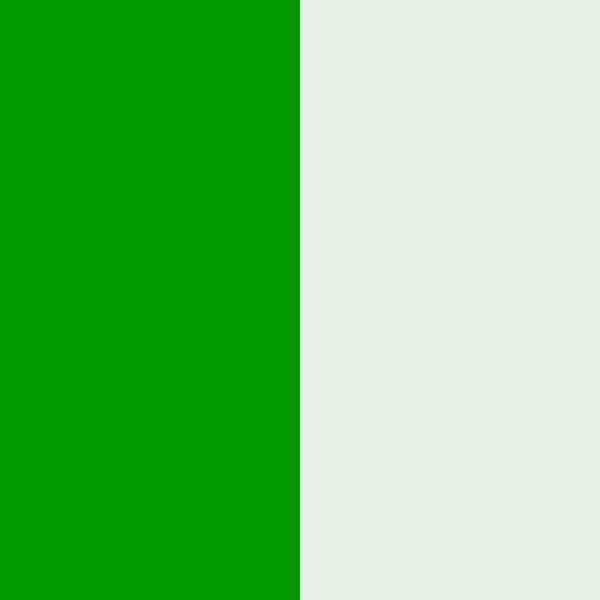
Shows a semi-transparent square. On the left it uses a background, on the right it does not.
In the latter case, there is no background to blend with, so the resulting pixels are still semi-transparent. When these final pixels are shown on screen, they are blended with a virtual black background (i.e. the alpha channel is applied), resulting in a darker appearance.
The semi-transparent regions may also be blended with your desktop, if the OS and GUI library are configured to do so.
from rendercanvas.auto import RenderCanvas, loop
import pygfx as gfx


canvas = RenderCanvas(size=(600, 600))
renderer = gfx.renderers.WgpuRenderer(canvas)

geometry = gfx.plane_geometry(100, 100)

plane_bg = gfx.Mesh(
    geometry, gfx.MeshBasicMaterial(color=(0, 0, 0, 1), alpha_mode="blend")
)
plane_red = gfx.Mesh(
    geometry, gfx.MeshBasicMaterial(color=(0, 1, 0, 0.3), alpha_mode="blend")
)

plane_bg.local.position = -50, 0, 0
plane_red.local.position = 0, 0, 10

scene = gfx.Scene()
scene.add(plane_bg, plane_red)

camera = gfx.OrthographicCamera(100, 100)

canvas.request_draw(lambda: renderer.render(scene, camera))


if __name__ == "__main__":
    print(__doc__)
    loop.run()
Total running time of the script: (0 minutes 0.194 seconds)
Gallery generated by Sphinx-Gallery
Interactive example
Try this example in your browser using Pyodide. Might not work with all examples and all devices. Check the output and your browser’s console for details.