Note
Go to the end to download the full example code.
Image Material
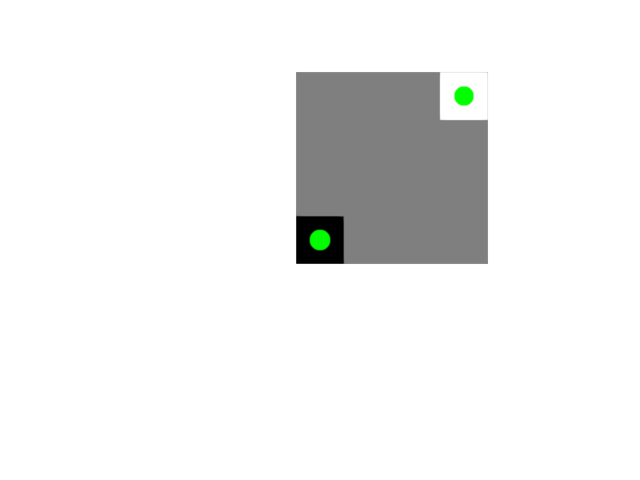
Show an image displayed the correct way.
The green dots should be at the corners that are darker/brighter.
The green dots should be in the center of these pixels.
The darker corner is in the bottom left.
import numpy as np
from rendercanvas.auto import RenderCanvas, loop
import pygfx as gfx


canvas = RenderCanvas()
renderer = gfx.renderers.WgpuRenderer(canvas)
scene = gfx.Scene()

im = np.array(
    [
        [0, 1, 1, 1],
        [1, 1, 1, 1],
        [1, 1, 1, 1],
        [1, 1, 1, 2],
    ],
    np.float32,
)


image = gfx.Image(
    gfx.Geometry(grid=gfx.Texture(im, dim=2)),
    gfx.ImageBasicMaterial(clim=(0, 2), interpolation="nearest"),
)
scene.add(image)

points = gfx.Points(
    gfx.Geometry(positions=[[0, 0, 1], [3, 3, 1]]),
    gfx.PointsMaterial(color=(0, 1, 0, 1), size=20, aa=True),
)
scene.add(points)

camera = gfx.OrthographicCamera(10, 10)

canvas.request_draw(lambda: renderer.render(scene, camera))


if __name__ == "__main__":
    print(__doc__)
    loop.run()
Total running time of the script: (0 minutes 0.295 seconds)
Gallery generated by Sphinx-Gallery
Interactive example
Try this example in your browser using Pyodide. Might not work with all examples and all devices. Check the output and your browser’s console for details.