Note
Go to the end to download the full example code.
Panzoom Camera
Example showing orbit camera controller.
Press ‘s’ to save the state, and press ‘l’ to load the last saved state.
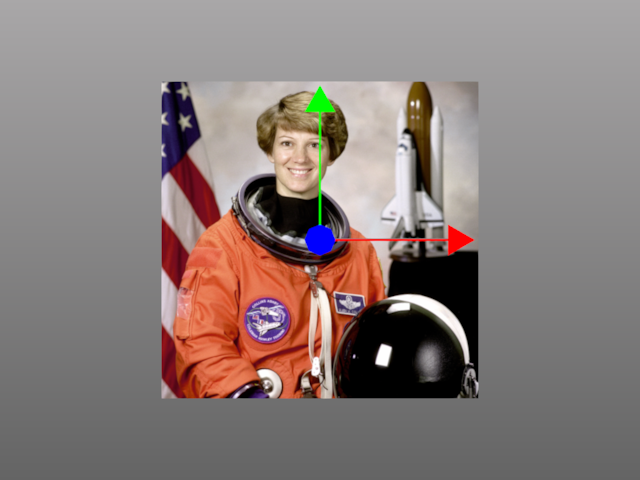
import imageio.v3 as iio
from rendercanvas.auto import RenderCanvas, loop
import pygfx as gfx
import numpy as np


canvas = RenderCanvas()
renderer = gfx.renderers.WgpuRenderer(canvas)
scene = gfx.Scene()

axes = gfx.AxesHelper(size=250)
scene.add(axes)

dark_gray = np.array((169, 167, 168, 255)) / 255
light_gray = np.array((100, 100, 100, 255)) / 255
background = gfx.Background.from_color(light_gray, dark_gray)
scene.add(background)

im = iio.imread("imageio:astronaut.png")
tex = gfx.Texture(im, dim=2)
geometry = gfx.plane_geometry(512, 512)
material = gfx.MeshBasicMaterial(map=tex)
plane = gfx.Mesh(geometry, material)
scene.add(plane)

camera = gfx.OrthographicCamera(512, 512)
camera.show_object(scene)
controller = gfx.PanZoomController(camera, register_events=renderer)


# initial camera state
camera_state = camera.get_state()


def on_key_down(event):
    if event.key not in ["s", "l", "r"]:
        return

    global camera_state

    # without disabling the controller any in-progress action
    # during this function call will overwrite the camera state
    controller.enabled = False

    if event.key == "s":
        camera_state = camera.get_state()
    elif event.key == "l":
        camera.set_state(camera_state)
    elif event.key == "r":
        camera.show_object(scene)

    controller.enabled = True

    canvas.request_draw()  # not required if you are continuously rendering


renderer.add_event_handler(on_key_down, "key_down")


if __name__ == "__main__":
    canvas.request_draw(lambda: renderer.render(scene, camera))
    loop.run()
Total running time of the script: (0 minutes 0.295 seconds)
Gallery generated by Sphinx-Gallery
Interactive example
Try this example in your browser using Pyodide. Might not work with all examples and all devices. Check the output and your browser’s console for details.