Note
Go to the end to download the full example code.
Text contrast
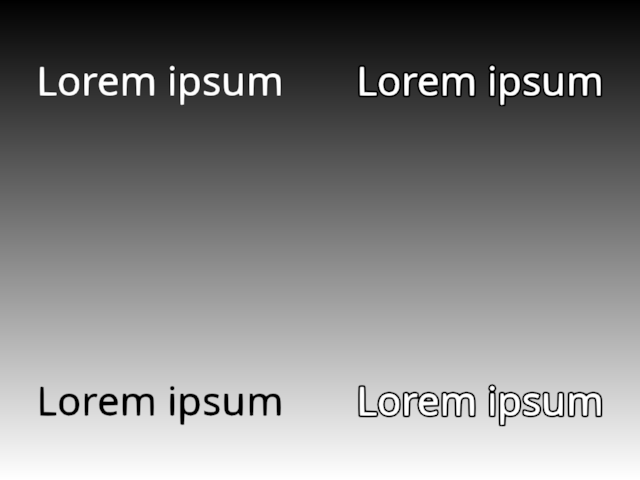
Example demonstrating text on dark and light background.
On the left, plain text is shown in black and white. There is a psychological effect that makes the bottom text appear thinner than the other way around (dark text on light background). The weight_offset compensates for this effect.
On the right the text uses an outline to give a good appearance on any background.
from rendercanvas.auto import RenderCanvas, loop
import pygfx as gfx

scene = gfx.Scene()


scene.add(gfx.Background.from_color("#fff", "#000"))


t1 = gfx.Text(
    text="Lorem ipsum",
    font_size=40,
    screen_space=True,
    material=gfx.TextMaterial(color="#fff"),
)
t2 = gfx.Text(
    text="Lorem ipsum",
    font_size=40,
    screen_space=True,
    material=gfx.TextMaterial(color="#000", weight_offset=50),
)
t3 = gfx.Text(
    text="Lorem ipsum",
    font_size=40,
    screen_space=True,
    material=gfx.TextMaterial(
        color="#fff", outline_color="#000", outline_thickness=0.15
    ),
)
t4 = gfx.Text(
    text="Lorem ipsum",
    font_size=40,
    screen_space=True,
    material=gfx.TextMaterial(
        color="#fff", outline_color="#000", outline_thickness=0.15
    ),
)

t1.local.position = (-1, +1, 0)
t2.local.position = (-1, -1, 0)

t3.local.position = (+1, +1, 0)
t4.local.position = (+1, -1, 0)

scene.add(t1, t2, t3, t4)

camera = gfx.OrthographicCamera(4, 3)


renderer = gfx.renderers.WgpuRenderer(RenderCanvas())
renderer.request_draw(lambda: renderer.render(scene, camera))

if __name__ == "__main__":
    loop.run()
Total running time of the script: (0 minutes 0.178 seconds)
Gallery generated by Sphinx-Gallery
Interactive example
Try this example in your browser using Pyodide. Might not work with all examples and all devices. Check the output and your browser’s console for details.