Note
Go to the end to download the full example code.
Text multiple labels
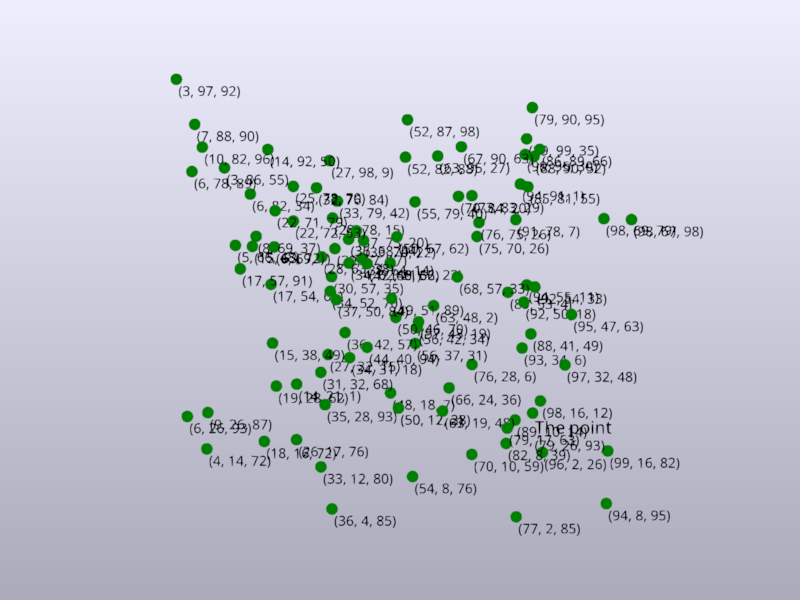
This example demonstrate how to use text labels, where text blocks are positioned in world-space, but displayed in screen-space.
This example simply creates a 3D scatter point, attaching a label to each point that displays its position.
The geometry is shared between the Text and Points object. You can also
only share the positions buffer. Note though, that the text geometry
can re-allocate its buffers if the number of text blocks changes.
from rendercanvas.auto import RenderCanvas, loop

import pygfx as gfx
import numpy as np


scene = gfx.Scene()
scene.add(gfx.Background.from_color("#aab", "#eef"))

# Create text object
text = gfx.MultiText(
    anchor="top-left",
    anchor_offset=2,
    screen_space=True,
    font_size=14,
    material=gfx.TextMaterial(color="#000"),
)
scene.add(text)


# Create a bunch of positions
positions = np.random.uniform(1, 99, (100, 3)).astype(np.float32)

# Apply them to the geometry
text.set_text_block_count(positions.shape[0])
text.geometry.positions = gfx.Buffer(positions)

# Set the text of each text block.
for i in range(positions.shape[0]):
    text_block = text.get_text_block(i)
    pos = positions[i]
    s = f"({pos[0]:0.0f}, {pos[1]:0.0f}, {pos[2]:0.0f})"
    if i == 20:
        # Every block supports markdown, text wrapping, alignment, etc.
        text_block.set_markdown("### The point \n" + s)
    else:
        text_block.set_text(s)

# Show positions as points too
points = gfx.Points(text.geometry, gfx.PointsMaterial(color="green", size=12))
scene.add(points)


camera = gfx.PerspectiveCamera()
camera.show_object(scene)

renderer = gfx.renderers.WgpuRenderer(RenderCanvas(size=(800, 600)))
controller = gfx.OrbitController(camera, register_events=renderer)

renderer.request_draw(lambda: renderer.render(scene, camera))


if __name__ == "__main__":
    loop.run()
Total running time of the script: (0 minutes 0.396 seconds)
Gallery generated by Sphinx-Gallery
Interactive example
Try this example in your browser using Pyodide. Might not work with all examples and all devices. Check the output and your browser’s console for details.